
Partner Tokens + Iterable
These instructions are for organisations who send post-show communications through Iterable to their audiences and want to prompt them to leave a show-score.com review using partner tokens.
Pre requisites
- Iterable.com configured to send post-show comms to your audience
- Show-Score API key
- Show-Score show ID
Speak to your TTG/Show-Score account manager to obtain these details.
Both of these are distinct from TTG/Encore API keys and IDs.
This guide covers creating a journey from scratch or editing an existing one.
To create a new journey, start at step 1; otherwise, skip to step 3.
Step 1: Create New Journey
- Go to Messaging → Journeys in Iterable
- Click New Journey
- Name your journey
Step 2: Build a Journey Flow
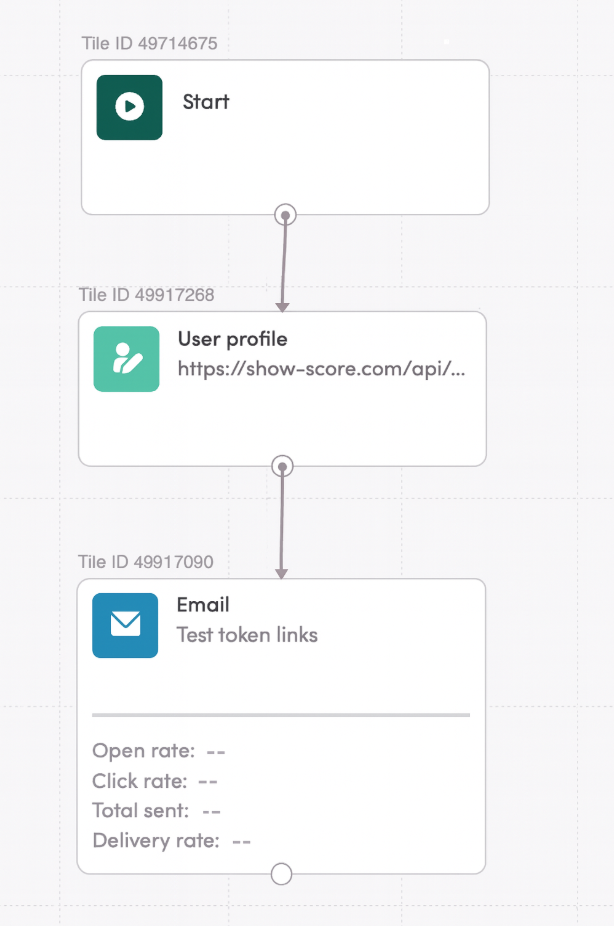
- Start Tile → User Profile Tile → Email Tile
- Start Tile: Configure your trigger (list addition, event, API trigger, etc.)
- Add User Profile tile from the right panel
- Add a Email tile from the right panel
- Connect them as the picture shows
- To continue creating this Journey go to step 5.
Step 3: Editing an existing journey
Go to Messaging → Journeys → Select the journey to edit
Step 4: Add a User Profile Tile to the existing Journey
We need to add a User Profile Tile before to the Email that we need to populate with the information from show-score webhook
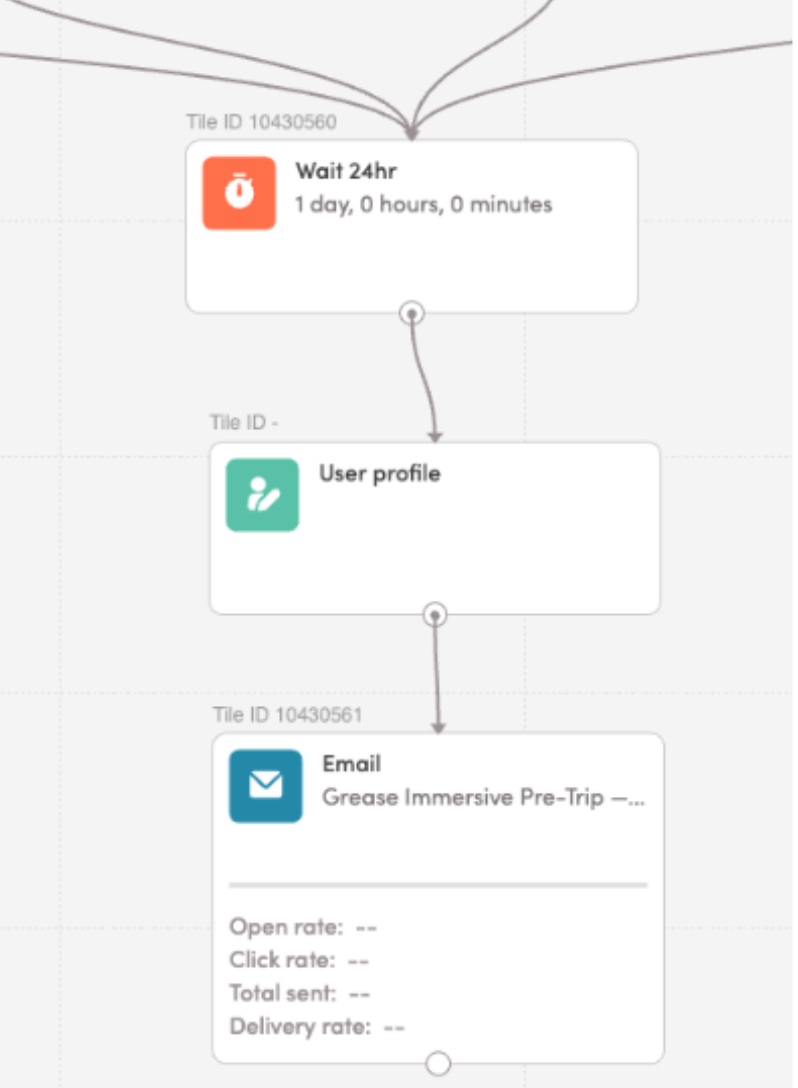
Existing flow → User Profile Tile → Existing Email Tile
- Add the User Profile Tile between the Email template and the previous tile
- Connect it to the Email template that we will include the review url
Step 5: Configure User Profile Tile
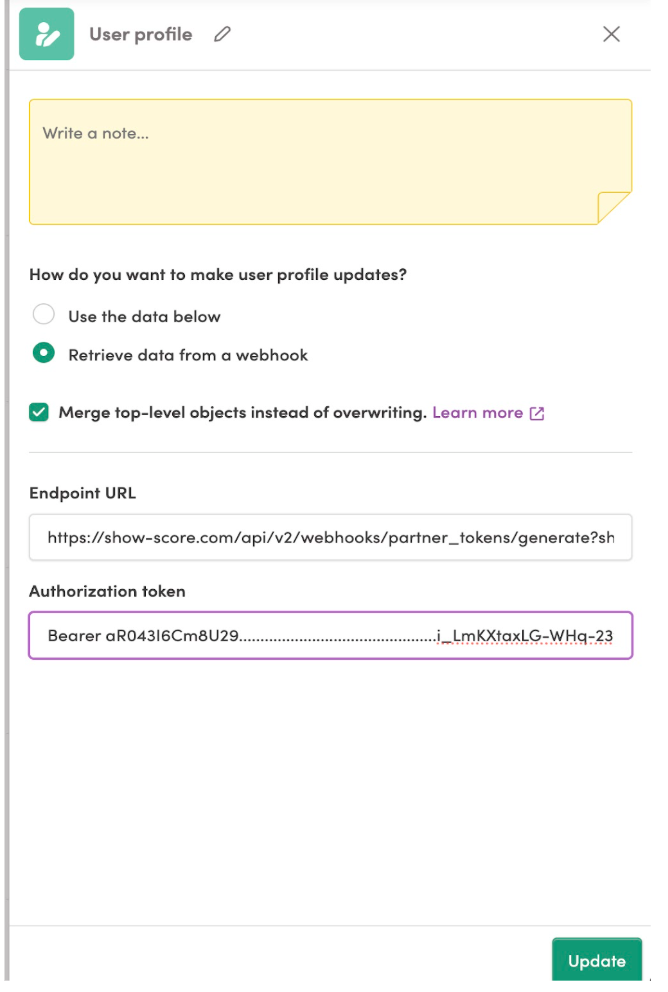
In the User Profile tile, configure it as follows:
How do you want to make user profile updates?
- Select: "Retrieve data from a webhook"
- Check "Merge top-level objects instead of overwriting."
Endpoint URL:
[https://show-score.com/api/v2/webhooks/partner_tokens/generate?show_id=\{SHOW_ID}&flat=true](https://show-score.com/api/v2/webhooks/partner_tokens/generate?show_id=\{SHOW_ID}\&flat=true)- Replace
{SHOW_ID}with your actual Show ID (e.g., 1, 62, etc.) - The flat=true parameter returns a flat response that Iterable can map to user fields
Authorization token: Bearer YOUR_API_KEY_HERE
- Replace YOUR_API_KEY_HERE with your API key
- Click Save
- Iterable will call this webhook for each user and store the review_url in their profile.
Step 6: Update Email Template with Review Link
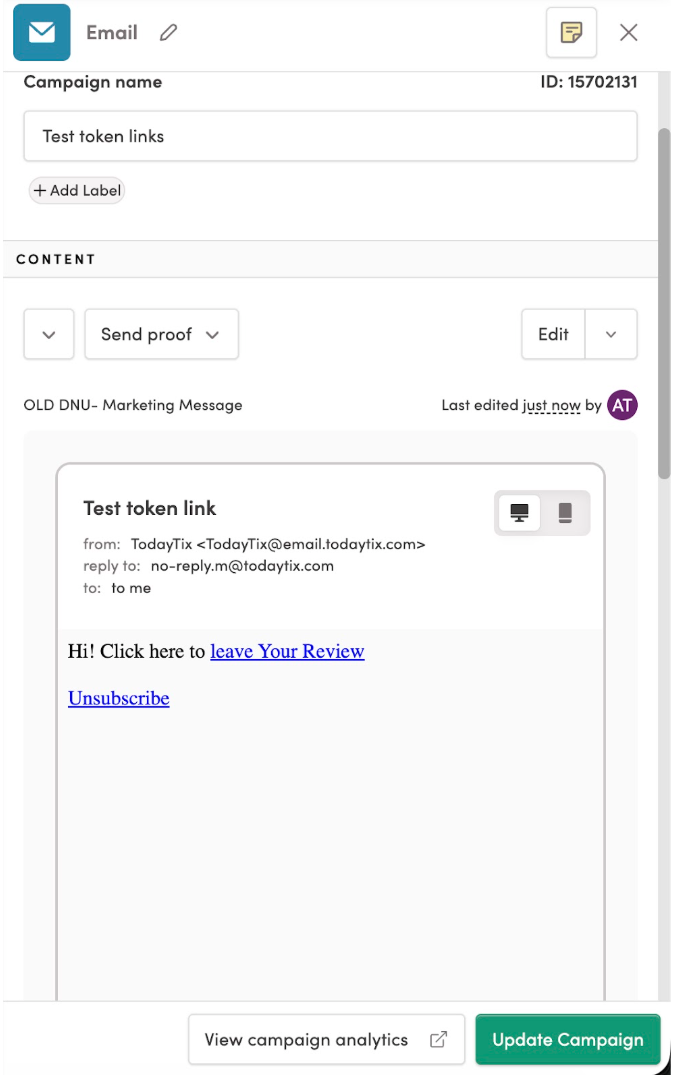
In your email template, add a link using the {{review_url}} variable:
HTML Link Example:
Important: The {{review_url}} variable is automatically populated by the webhook response from Step 5.
Examples
HTML template example

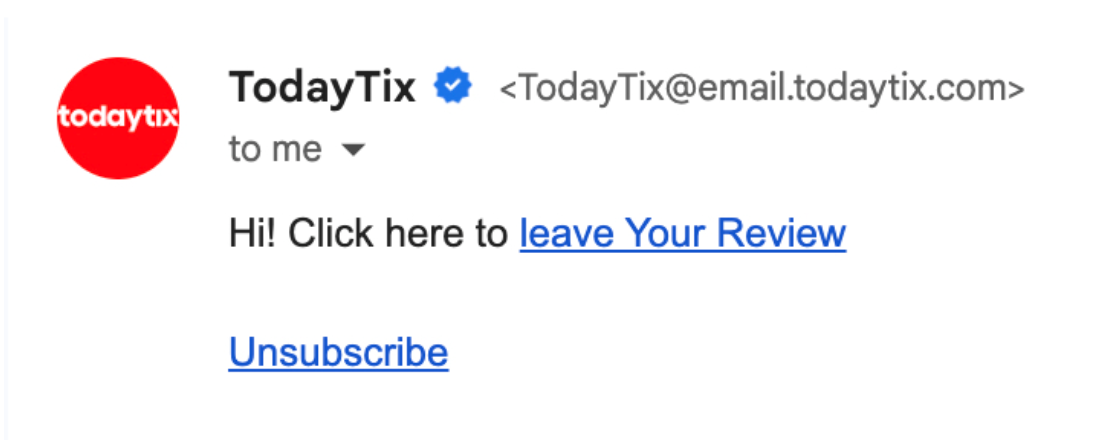
Resulting email example
Activate journey
Review and test your flow and click Activate
Updated 11 months ago