
Partner Tokens + crowdEngage
Integrating Show-Score Partner Tokens with CrowdEngage
This guide explains how to configure Spektrix and CrowdEngage so that customers automatically receive a personalised Show-Score review link by SMS after attending a performance. It will take five minutes to complete, and requires no technical expertise.
Once set up, CrowdEngage will send customers an SMS containing a secure, one-click Show-Score review URL, without requiring them to create an account or provide an email address. No personally identifiable information (like name or email address) is passed to Show-Score, so it is GDPR-compliant.
Pre-requisites
Before starting, ensure you have:
- Access to Spektrix
- Access to CrowdEngage
- A ShowScoreID provided by the Show-Score team for each event you wish to collect reviews for
Step 1: Create a Show-Score Event Attribute in Spektrix
- Log in to Spektrix
- Navigate to: Settings → Attribute Definitions → Events
- Click New Attribute Definition
- Create a new attribute with the following:
- Name:
ShowScoreID - (Leave other settings as default)
- Name:
- Save the attribute
Step 2: Add the ShowScoreID to Each Event in Spektrix
- In Spektrix, go to: Admin → Events
- Select the relevant event
- Click Edit
- You will now see a new textbox labelled ShowScoreID
- Enter the ID provided to you by the Show-Score team
- Save the event
Repeat this step for each event you want customers to review on Show-Score.
When new shows go on sale in future, the Show-Score team can supply you with IDs for those, too.
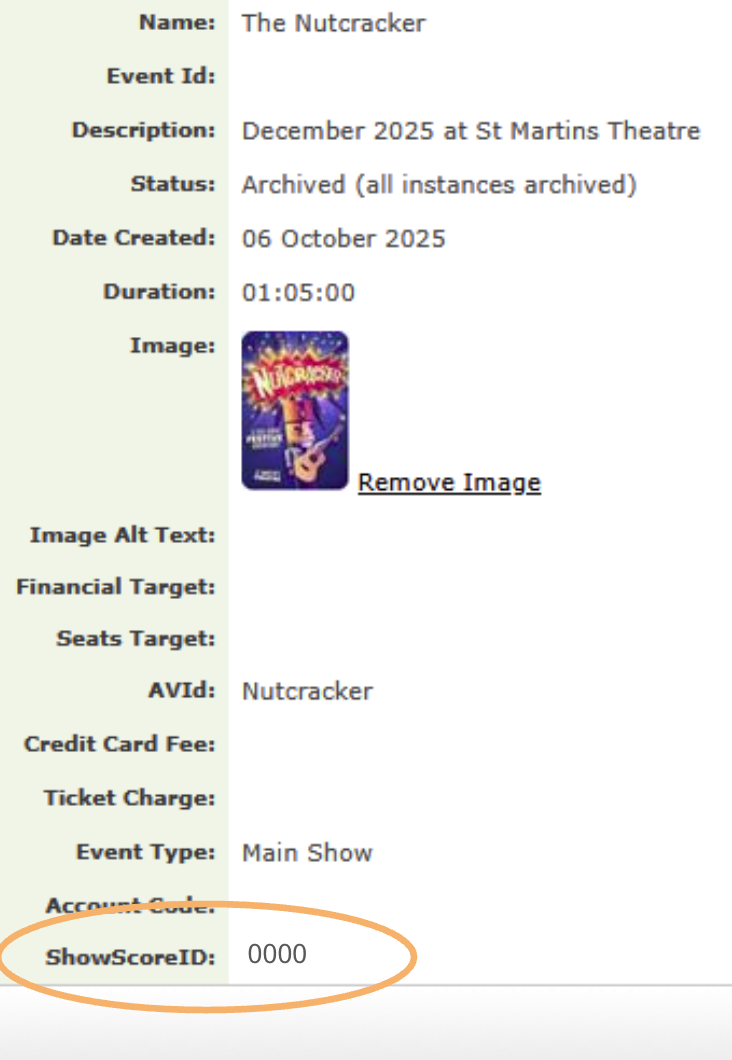
Add your ShowScoreID to the event
Step 3: Create the Initial Post-Show Message in CrowdEngage
-
Log in to
crowdengage.com -
From the menu bar, navigate to: Messaging → Flows
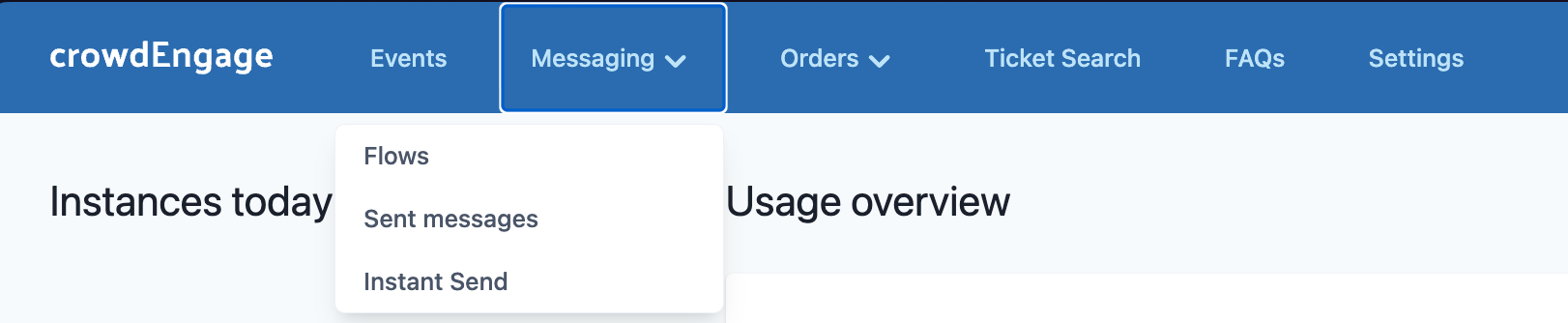
-
Open Default Flow
-
Click Add Step → New Template
-
Give the template a clear name, for example: Show-Score Review Request (3 hours post-show)
-
Add the following message content:
{% if event.raw.attribute_ShowScoreID %}
{{ customer.first_name }}, please help the theatre community by leaving your review of {{ event.name }} on Show-Score:
{{ show_score_url(event.raw.attribute_ShowScoreID) }}
{% endif %}- Click Apply
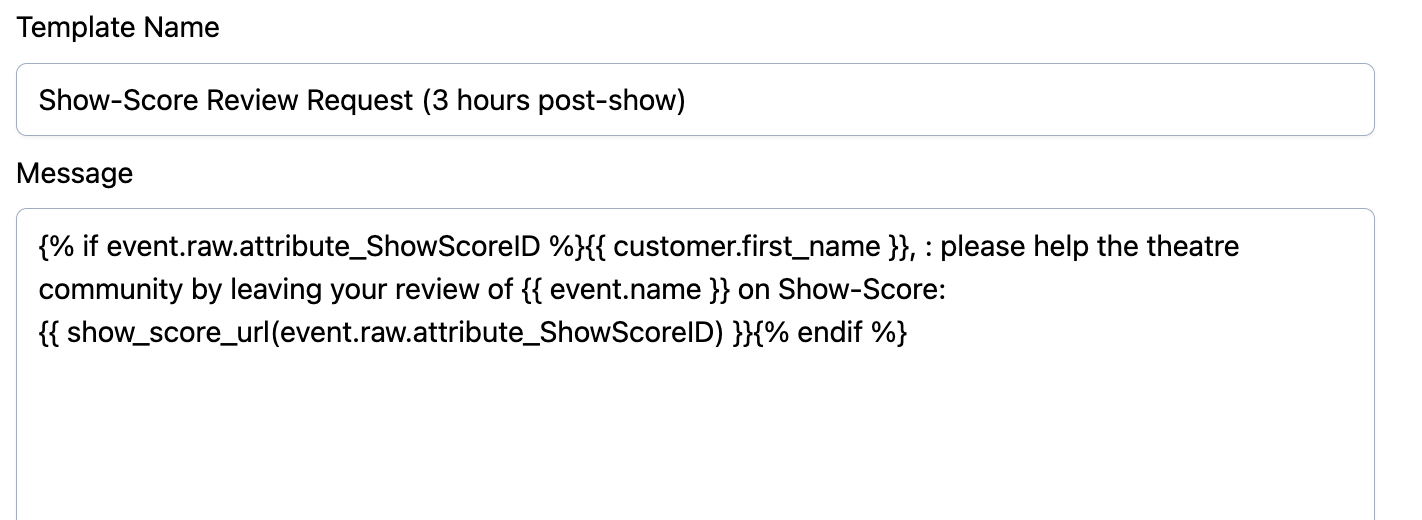
Step 4: Configure When the Message Sends
With the new template selected, apply the following settings:
- Send to these customers: All customers
- With this template: Show-Score Review Request (3 hours post-show)
- For these instances: All live instances
- At this time:
- 0 days
- 3 hours
- 0 minutes
after the event start time
- Click Save
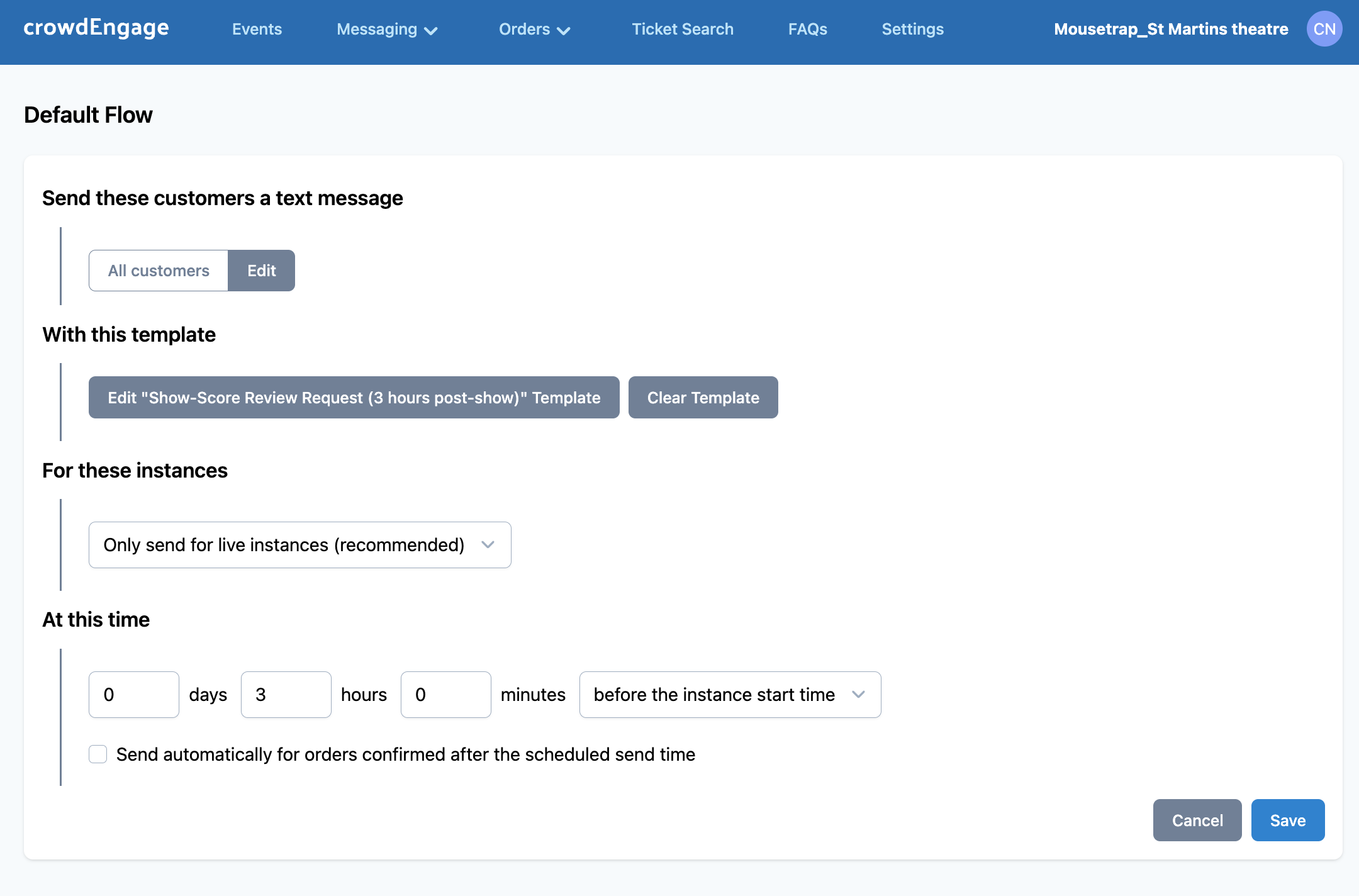
Step 5: Create a Reminder Message (1 Day After the Event)
To increase review completion, we recommend sending a follow-up reminder one day later.
- Still in Messaging → Flows → Default Flow
- Click Add Step → New Template
- Name the template, for example: Show-Score Review Reminder (1 day post-show)
- Add the following message content:
{% if event.raw.attribute_ShowScoreID %}
{{ customer.first_name }}, have you reviewed the show yet? Please help other theatregoers by reviewing {{ event.name }} on Show-Score:
{{ show_score_url(event.raw.attribute_ShowScoreID) }}
{% endif %}- Click Apply
Step 6: Configure the Reminder Timing
Apply the following settings for the reminder template:
- Send to these customers: All customers
- With this template: Show-Score Review Reminder (1 day post-show)
- For these instances: All live instances
- At this time:
- 1 day
- 0 hours
- 0 minutes
after the event start time
- Click Save
Step 7: Adding more events
When you go on sale with new events, you don't need to make any changes in CrowdEngage.
Simply request a new ShowScoreID from the Show-Score team and add it into Spektrix. Done!
Completion
Once these steps are complete, CrowdEngage will automatically send customers secure Show-Score review links after each performance, using the ShowScoreID defined in Spektrix.
Updated 9 months ago